
Ever found yourself in a situation where your iPhone is playing peek-a-boo with your TV? One moment you’re trying to enjoy a cozy movie night, and the next, your screen’s reflecting everything like a overzealous funhouse mirror. It’s like your iPhone decided to take center stage without your permission!
Understanding iPhone Mirroring
Screen mirroring allows users to project their iPhone’s display onto larger screens, such as TVs or projectors. This function offers convenient access to content from the device, enhancing viewing experiences for various activities.
What Is Screen Mirroring?
Screen mirroring refers to the process of duplicating an iPhone’s screen onto a compatible external display. Users can see exactly what’s on their phones, including photos, videos, and app interfaces. This feature relies on technologies like AirPlay, which enables seamless connections between devices. When mirrored, any action performed on the iPhone instantly reflects on the larger screen. The simplicity of this feature makes it popular among users looking to share content with larger audiences.
Common Use Cases for Mirroring
Many individuals utilize screen mirroring for multiple purposes. Sharing presentations in professional settings provides a clear view for all attendees. Watching movies or shows becomes a group activity when streamed onto a bigger screen. Friends often use this feature to showcase photos from recent trips. Gaming enthusiasts also benefit from mirroring by displaying gameplay on larger displays for better enjoyment. Educational environments leverage this technology for enhanced teaching experiences, allowing instructors to demonstrate applications and resources to students effectively.
How to Stop Mirroring on iPhone
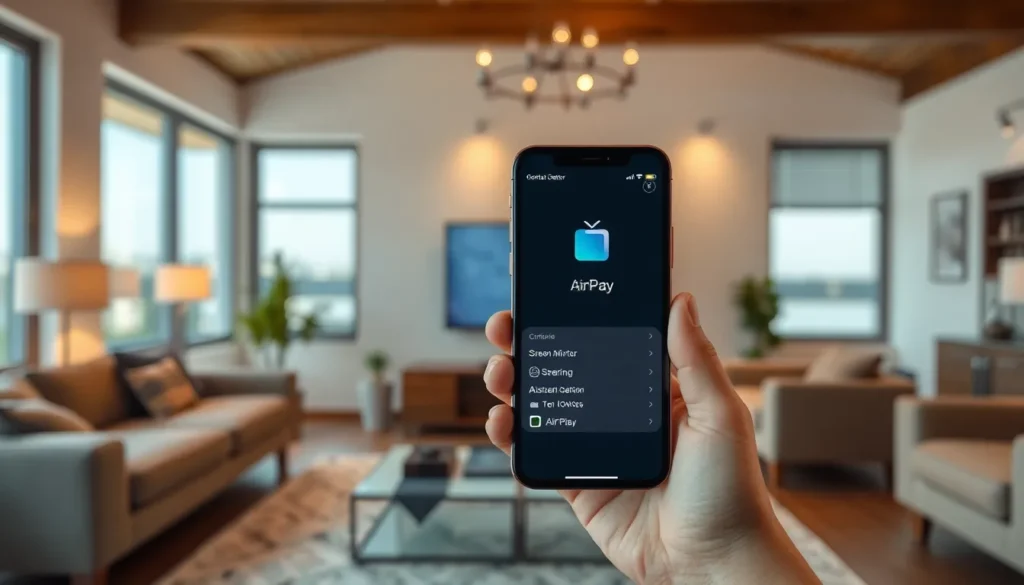
Stopping screen mirroring on an iPhone requires a few straightforward steps. Users can follow different methods to quickly regain control over their devices.
Using Control Center
Accessing Control Center offers a quick solution. Users can swipe down from the top-right corner on iPhone models without a Home button, or swipe up from the bottom edge on older models. Once in Control Center, look for the screen mirroring icon, which resembles two overlapping rectangles. Tapping this icon reveals the active connections. By selecting “Stop Mirroring,” users immediately disconnect their device from the external display.
Disabling AirPlay
Disabling AirPlay disables mirroring functions. Users can navigate to the Control Center and tap the AirPlay icon, depicted as a triangle with concentric circles above it. This action displays a list of available devices. Selecting “iPhone” or “iPad” from the options ensures the mirroring feature turns off and usage returns to the device itself.
Turning Off Bluetooth and Wi-Fi
Turning off Bluetooth and Wi-Fi also cuts off screen mirroring. Accessing the Settings app can aid in this process. Within Settings, users should select “Wi-Fi” and toggle it off, then repeat with the “Bluetooth” option. Disabling these connections prevents any potential mirroring attempts and ensures privacy during personal use.
Troubleshooting Mirroring Issues
Resolving mirroring problems requires addressing connectivity and device performance. These steps can ensure a smoother experience.
Resolving Connectivity Problems
Check the Wi-Fi network to ensure both the iPhone and the displaying device are connected to the same network. High network traffic impacts performance, so limiting other streaming activities can help. Verifying that the devices are within range also enhances connectivity. If an issue persists, forgetting and reconnecting to the Wi-Fi network may resolve unseen problems. Users should also examine if any firmware or software updates are pending, as outdated systems can lead to connectivity issues. Regularly checking for updates ensures optimal performance.
Restarting Your Devices
Restarting devices can effectively resolve minor glitches causing mirroring issues. Begin by turning off the iPhone, then wait a few seconds before powering it back on. Performing the same action on the TV or projector can refresh the connection. After restarting, access the Control Center again to verify if mirroring options are functional. If not, attempt force quitting the relevant app on the iPhone and relaunching it, which can often reset operational parameters. Regularly restarting devices improves overall performance and mitigates mirroring complications.
Additional Tips for Managing iPhone Connections
Managing iPhone connections effectively means prioritizing user privacy and ensuring device compatibility.
Adjusting Settings for Better Privacy
Change privacy settings to enhance the security of personal data. Users can restrict AirPlay access by navigating to the Control Center and selecting the option to block connections from unwanted devices. Modifying Wi-Fi settings also plays a crucial role; turning off Auto-Join on public networks prevents devices from automatically connecting and mitigating potential risks. Limiting Bluetooth visibility helps as well, as making the device undiscoverable protects against unwanted pairing attempts. Regularly reviewing app permissions can also strengthen privacy measures, ensuring only trusted applications communicate with external devices.
Ensuring Device Compatibility
Verify device compatibility to avoid connection issues. Not all devices support the same mirroring protocols, making compatibility essential for effective performance. Checking the model and software version of both the iPhone and the receiving device aids in identifying potential limitations. Utilizing Apple’s official support page provides valuable information about supported devices and their capabilities. Keeping devices updated ensures access to the latest features and fixes, promoting a smoother mirroring experience. Using Apple’s hardware and software diminishes the likelihood of compatibility problems, ensuring users enjoy seamless connectivity.
Stopping screen mirroring on an iPhone is essential for maintaining control and privacy. By using the Control Center or adjusting settings in the Settings app, users can easily disconnect from unwanted displays. Troubleshooting connectivity issues and ensuring devices are updated further enhances the experience.
Implementing these strategies not only prevents unwanted interruptions but also protects personal data. Regularly reviewing privacy settings and device compatibility ensures a seamless interaction with technology. With these tips, users can enjoy their iPhone without the hassle of unexpected mirroring.